Getting Started with Python in Visual Studio: A Step-by-Step Guide

I'm JMN (Jaffery Mwangi Ndisho), and I'm thrilled to share my passion for data analytics and programming with you. With a background in business and IT, I've always been fascinated by the power of algorithms and their ability to transform data into insights. Through this blog, I hope to share my learning journey and practical knowledge with you, as well as explore new techniques and applications in the field. Join me on this journey and let's discover the world of data analytics and programming together!
Step 1
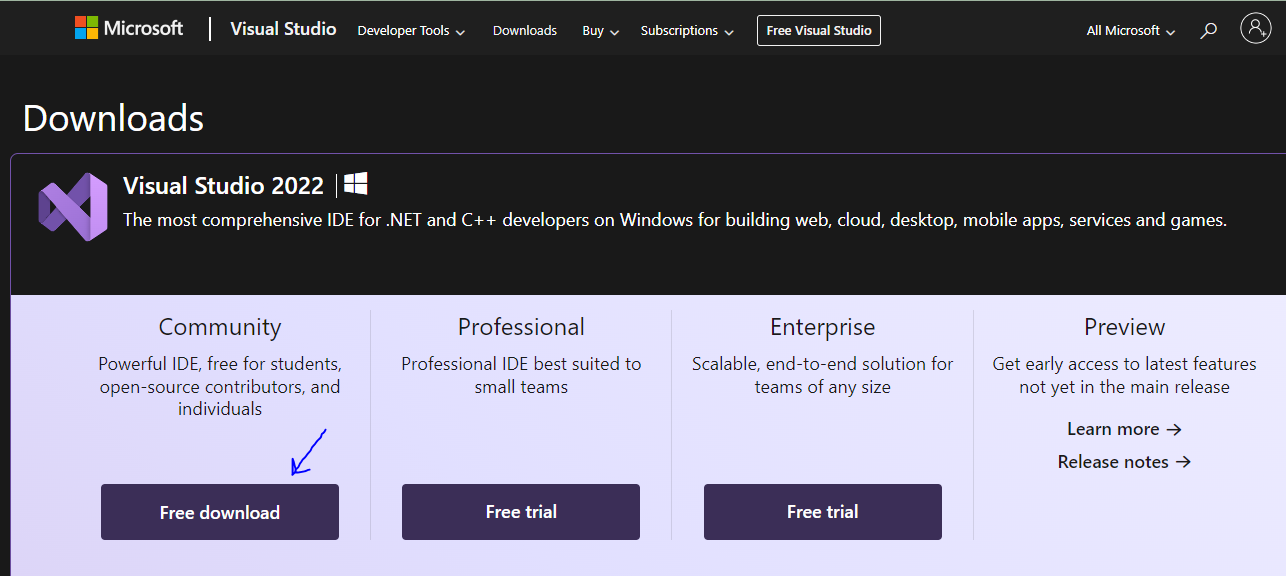
Go to this link: https://visualstudio.microsoft.com/downloads/
Step 2
Click on the download button under the community heading. Now, just wait for the download.
Step 3
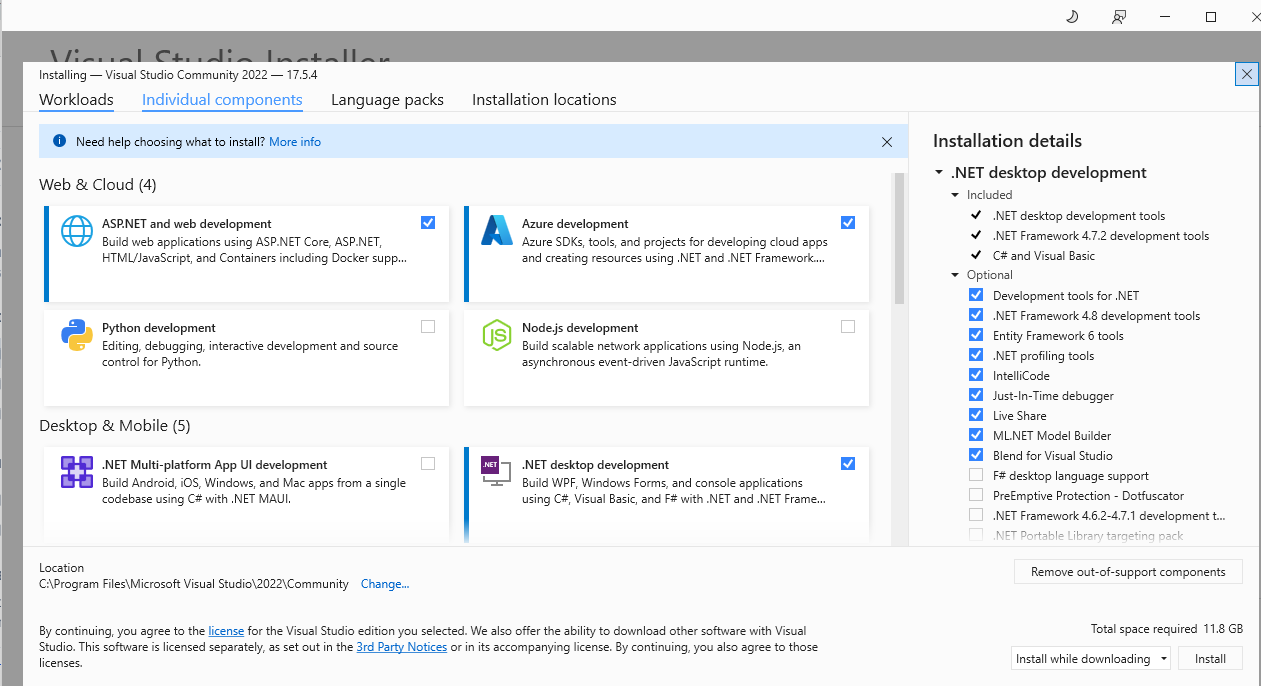
Run the installer and wait for the installation wizard to open (shown in the image below)
Step 4
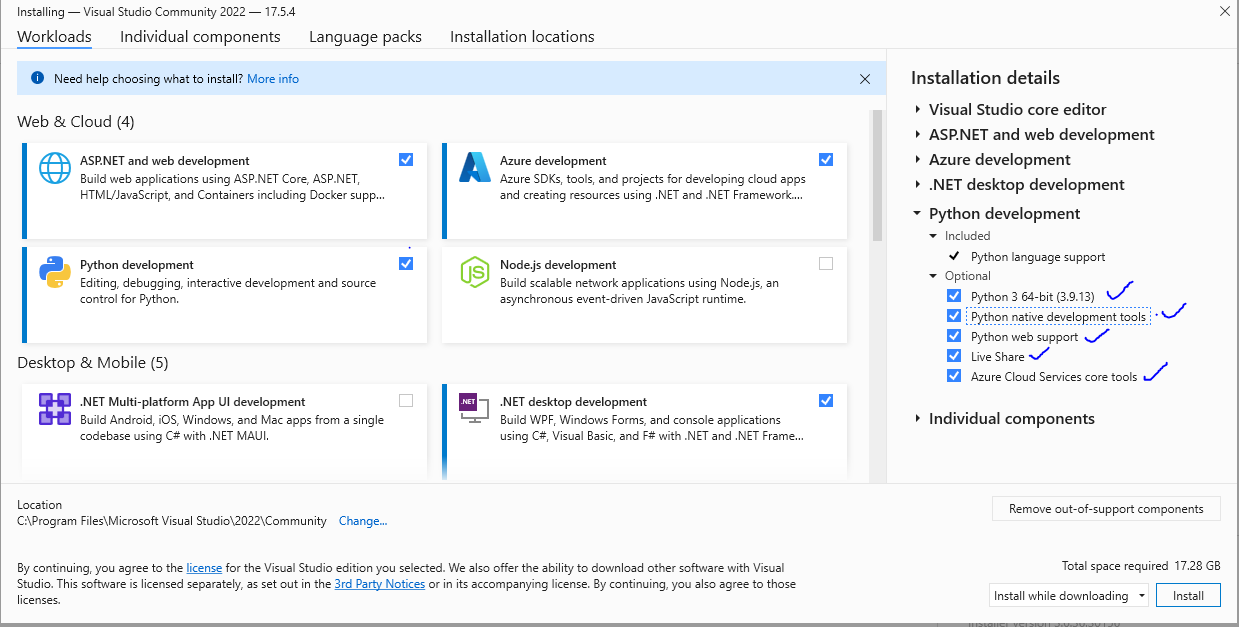
Tick the option labeled 'Python development' to enable support for Python. On the right side of the screen, select any additional components you require (select the ones with blue colored ticks) Click 'Install' at the bottom-right corner to begin the installation process.
Step 5
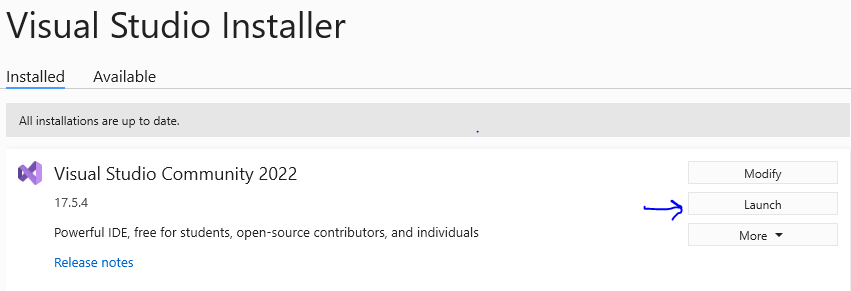
Click on the launch button
Step 6
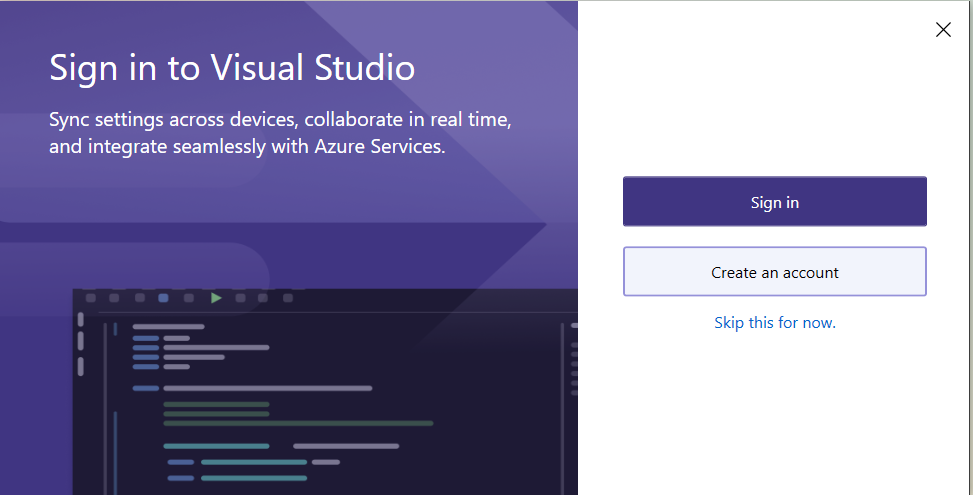
You will be given the option to sign into an account or you can skip it. You can choose whatever fits you at the moment.
Step 7
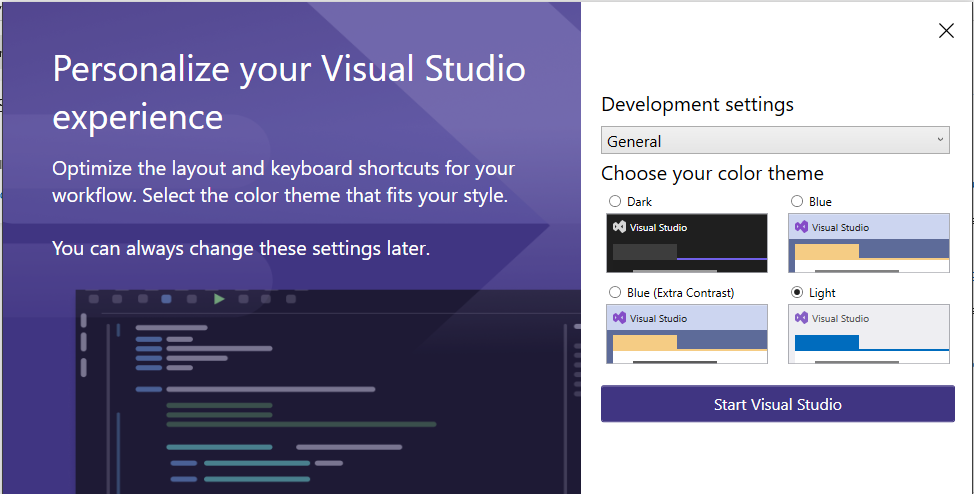
Choose your preferred theme and clock on start visual studio.
Step 8
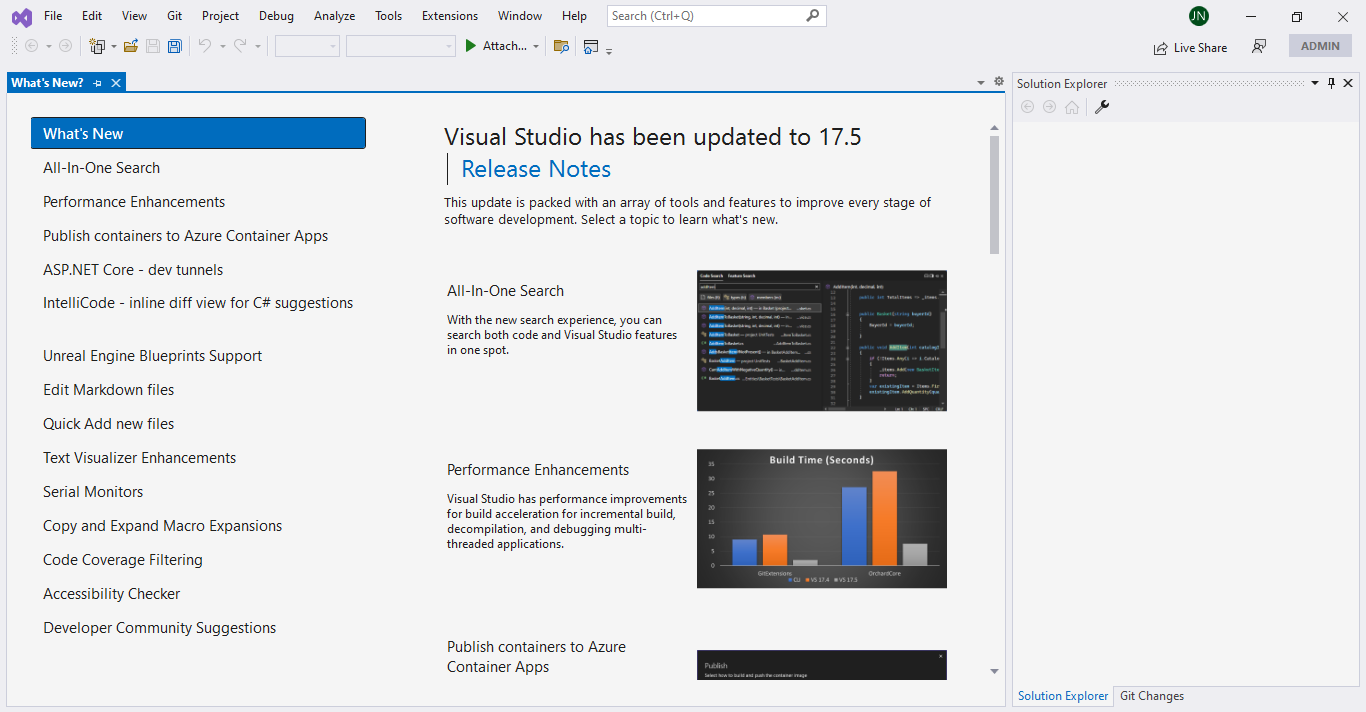
After starting the visual studio, you should be met with the below screen.
Step 9
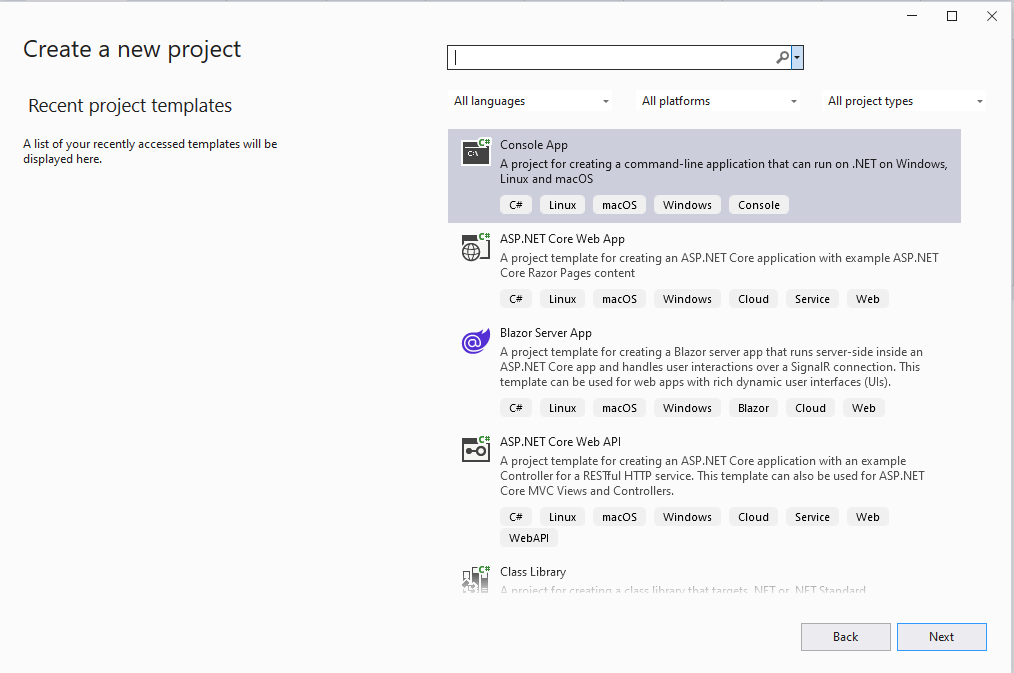
Go to "File" on the menu bar and select "New" > "Project". You should see the below screen.
Step 10
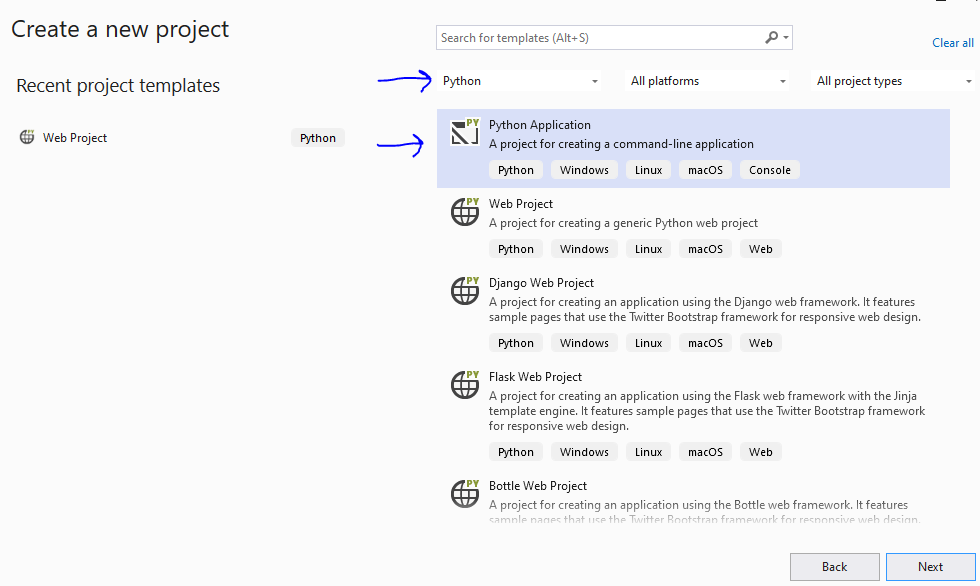
In the "New Project" dialog box, select "Python" under "Create a new project". Select the Python application and then click next at the bottom-right corner.
Step 11
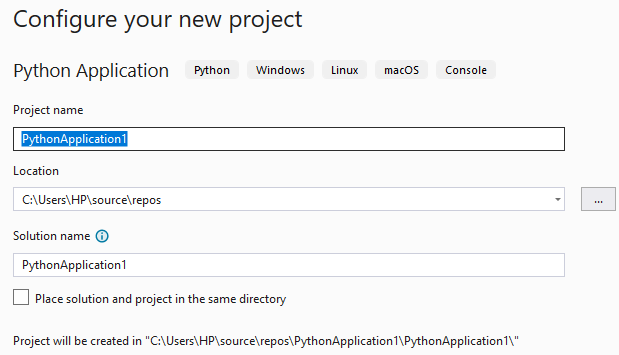
Give your project a name and choose a location to save it. Then click on the Create button in the bottom-right corner.
Step 12
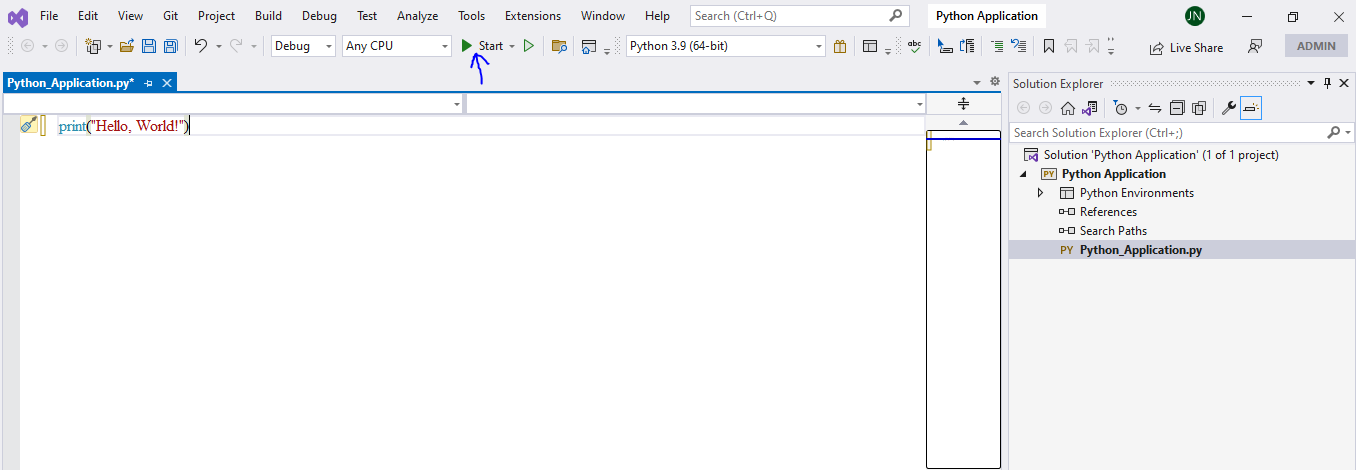
In the "Solution Explorer" window, find and double-click on the file that ends with the ".py" extension (e.g. "program.py"). Type the following code: print("Hello world") and then run the program by clicking on start.
Step 13
The output of the program, "Hello, World!", should appear in the "Output" window as seen below.
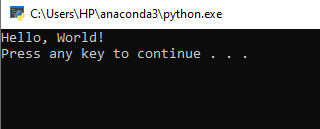
That was all. I hope that it was fun for all of you. Next time, we shall look at variables.